Expose llama.cpp over Inlets Cloud

Han Verstraete
llama.cpp makes serving open models from your own hardware straightforward, whether that is a developer laptop, a workstation, or a powerful lab machine.
With Inlets Cloud, you can quickly get a stable HTTPS URL and authentication for a local llama-server, making it easy to use that model outside the machine it is running on.
This is useful for:
- Accessing a model of your choice remotely from anywhere with unlimited tokens.
- Sharing access to GPUs with colleagues.
- Serving your latest fine-tune for feedback from the community and friends.
In this post, we’ll cover how to:
- Run
llama-serverlocally with an open model. - Create an Inlets Cloud HTTP tunnel and get public domain for the server.
- Protect the inference API with bearer-token authentication.
- Configure opencode and Claude Code to use the self-hosted model.
Pre-reqs
You’ll need access to Inlets Cloud. If you do not have an account yet, register here.
You’ll also need the inlets-pro binary for connecting to tunnels:
- Download it from the GitHub releases
- Or install it with arkade:
arkade get inlets-pro
Configure the Inlets Cloud CLI
The inlets-pro cloud CLI provides a command-line interface to Inlets Cloud. It comes as a plugin for inlets-pro that needs to be installed separately.
If your inlets-pro binary does not already include the cloud command, install the plugin:
inlets-pro plugin get cloud
Check that the command is available:
inlets-pro cloud version
To start using the CLI, authenticate it with an access token. Access tokens can be managed through the Inlets Cloud Dashboard.
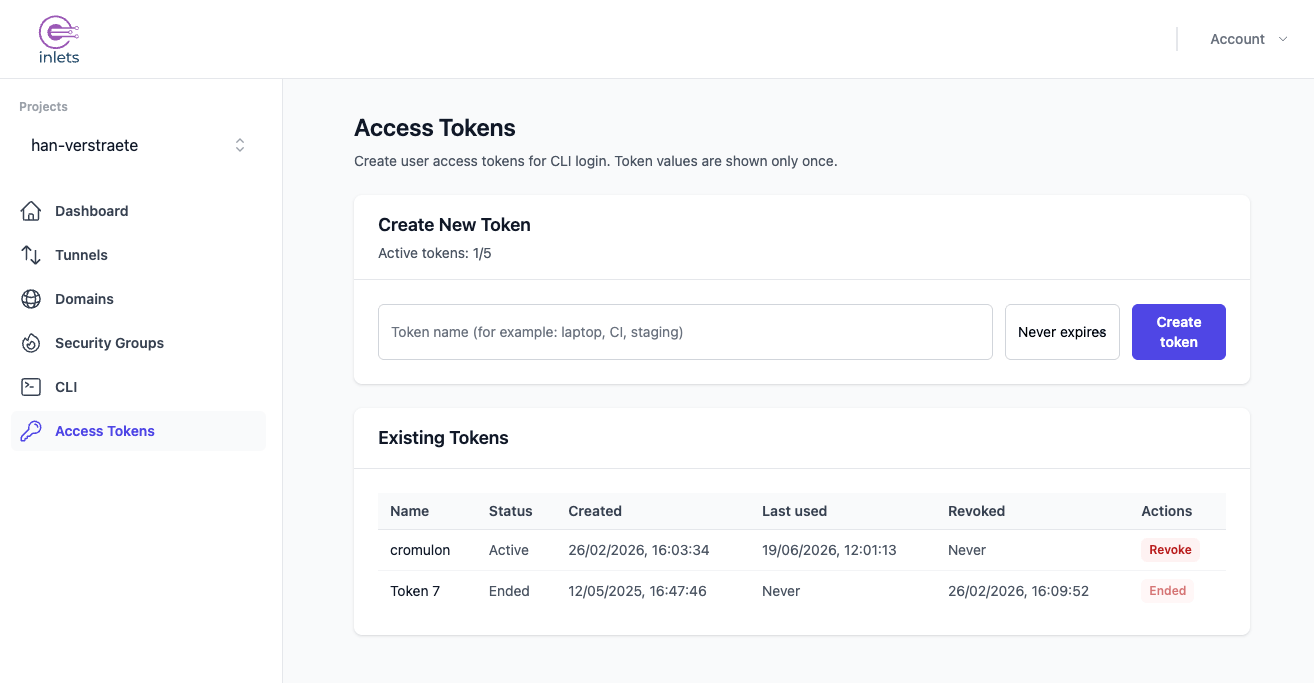
Create a new access token and save it somewhere private. In this example, we’ll store it at ~/.inlets/cloud-access-token. Run the following command, paste in your token, press Enter once, then press Control + D to save the file.
mkdir -p ~/.inlets

# Paste your token into this file
cat > ~/.inlets/cloud-access-token
After saving the token, restrict the file permissions:
chmod 0600 ~/.inlets/cloud-access-token
Then log in with the CLI:
inlets-pro cloud auth login --token "$(cat ~/.inlets/cloud-access-token)"
Confirm the login was successful:
inlets-pro cloud auth whoami
Run llama-server
For this tutorial, we’re using a small model so that we can validate the tunnel, authentication, and client configuration quickly. For useful day-to-day work with coding agents, you will usually want to serve a more advanced model that has been tuned for coding and tool use.
On Apple Silicon, you can download the macOS arm64 llama.cpp release from the llama.cpp releases page. The release binary includes Metal support, so llama-server can use GPU acceleration.
For NVIDIA GPUs, build llama.cpp from source with CUDA support. Unsloth’s llama.cpp MTP guide for Qwen models shows the build and run commands for this setup.
In this example, we ran the model locally on an M1 MacBook Air with 16 GB of RAM. The model is served with llama.cpp’s llama-server.
./llama-server \
    -hf unsloth/Qwen3.5-4B-MTP-GGUF:UD-Q4_K_XL \
    --host 127.0.0.1 \
    --port 8081 \
    --ctx-size 100000 \
    --gpu-layers 99 \
    --parallel 1 \
    --threads 4 \
    --jinja \
    --reasoning off \
    --reasoning-budget 0
A few notes on the flags:
--host 127.0.0.1keeps the server private to the local machine. Inlets Cloud will be the public entry point.--port 8081is the local port the model is served on.--ctx-size 100000sets the context window. Experiment with this value based on the memory available on your machine. A decent context size is important when using the model with agents. The agent’s system prompt alone can already consume a significant number of tokens.--jinjaenables the model’s chat template, which is important for tool-calling capable models.--reasoning offand--reasoning-budget 0disable reasoning for this validation run. On the limited hardware used here, the model could not reliably complete the reasoning loop. If you are running on more capable hardware, experiment with turning reasoning back on and compare the results.
Before moving to the next step and creating a tunnel, check that the local server responds:
curl -s http://127.0.0.1:8081/v1/models | jq
You can also test a small chat completion locally:
curl -s http://127.0.0.1:8081/v1/chat/completions \
  -H "content-type: application/json" \
  -d '{
    "model": "unsloth/Qwen3.5-4B-MTP-GGUF:UD-Q4_K_XL",
    "messages": [
      {"role": "user", "content": "Reply with one short sentence."}
    ],
    "max_tokens": 128
  }' | jq
Create an Inlets Cloud tunnel
Create a new HTTP tunnel using the Cloud CLI. The tunnel needs a name, and the CLI will pick a default region if you do not specify one. For a model API, it’s worth choosing a region close to the person or automation that will call the model most often.
List the available regions:
inlets-pro cloud region list
In the examples below, we’ll set the region explicitly to cambs1. By default Inlets Cloud will generate a HTTPS domain for the tunnel under tryinlets.dev.
TUNNEL_NAME="llama"
REGION="cambs1"

inlets-pro cloud tunnel create "$TUNNEL_NAME" \
  --region "$REGION"
Connect the tunnel to llama-server
Get the connection command for the tunnel. The --upstream flag points to the local llama-server address.
inlets-pro cloud tunnel connect llama \
  --upstream=http://127.0.0.1:8081
Example output:
inlets-pro uplink client --url=wss://cambs1.uplink.inlets.dev/han-verstraete/llama \
  --token=<REDACTED> \
  --upstream=vevamo.cambs1.tryinlets.dev=http://127.0.0.1:8081
By default, this connects the tunnel but does not require callers of the public HTTPS endpoint to authenticate. To prevent anyone from being able to access the llama-server, you need to enforce authentication for the tunnel.
Generate a random token and save it locally:
openssl rand -base64 32 > ./llama-token
chmod 0600 ./llama-token
Now run the tunnel client command from inlets-pro cloud tunnel connect, adding --bearer-token-file ./llama-token. For example:
inlets-pro uplink client --url=wss://cambs1.uplink.inlets.dev/han-verstraete/llama \
  --token=<REDACTED> \
  --upstream=vevamo.cambs1.tryinlets.dev=http://127.0.0.1:8081 \
  --bearer-token-file ./llama-token
Keep the bearer token private. Anyone with the public URL and bearer token can send inference requests to your local model while the tunnel client is running.
Test authentication
Export the generated HTTPS URL and bearer token for testing:
export LLAMA_TUNNEL_URL="https://vevamo.cambs1.tryinlets.dev"
export LLAMA_TUNNEL_TOKEN="$(cat ./llama-token)"
First, check that requests without the bearer token are rejected:
curl -i "$LLAMA_TUNNEL_URL/v1/models"
Then send the bearer token:
curl -s "$LLAMA_TUNNEL_URL/v1/models" \
  -H "Authorization: Bearer $LLAMA_TUNNEL_TOKEN" | jq
Use the model
Now that we have a protected HTTPS endpoint, we can point coding agents at it.
Connect with opencode
opencode supports custom OpenAI-compatible providers through its configuration file. If you already have an opencode.json, merge the provider below into your existing provider section. If you’re starting from an empty config, you can use the full example as-is.
{
  "$schema": "https://opencode.ai/config.json",
  "provider": {
    "local-llama": {
      "npm": "@ai-sdk/openai-compatible",
      "name": "Local Llama",
      "options": {
        "baseURL": "https://vevamo.cambs1.tryinlets.dev/v1",
        "timeout": 600000,
        "apiKey": "<redacted>"
      },
      "models": {
        "unsloth/Qwen3.5-4B-MTP-GGUF:UD-Q4_K_XL": {
          "name": "Qwen3.5-4B-MTP-UD-Q4_K_XL",
          "limit": {
            "context": 100000,
            "output": 8192
          }
        }
      }
    }
  }
}
Make sure to replace baseURL with the URL for your tunnel plus /v1, and replace apiKey with the bearer token generated in the previous section.
Configuration Breakdown:
npm- The provider plugin to use.@ai-sdk/openai-compatibleworks with any OpenAI-compatible API, includingllama-server.name- Display name for the provider in the opencode UI.options.baseURL— The Inlets Cloud HTTPS endpoint plus/v1. This is the domain for your Inlets tunnel. The URL must include the/v1path.options.timeout- Request timeout in milliseconds. Local models can be slow, so a generous timeout is recommended. In this example,600000is 10 minutes.options.apiKey- The bearer token generated in the previous step. opencode will use it when calling the tunnel endpoint.
You can now start opencode and run the /models command, then select the Local Llama provider and model. Send a small test prompt first, for example: Reply with one sentence and tell me which model you are running on.
Wrapping up
We ran through a step-by-step example that exposes a local llama.cpp server through an Inlets Cloud HTTP tunnel. By enabling bearer-token authentication on the tunnel, the inference API can be safely reached through a public URL without leaving it open to everyone.
Once a local llama-server is exposed through Inlets Cloud it can be used to:
- Access a model of your choice remotely from anywhere with unlimited tokens.
- Share access to GPUs with colleagues.
- Serve your latest fine-tune for feedback from community and friends.
Subscribe for updates and new content from OpenFaaS Ltd.
By providing your email, you agree to receive marketing emails.